> For the complete documentation index, see [llms.txt](https://learn.tryonederful.com/llms.txt). Markdown versions of documentation pages are available by appending `.md` to page URLs; this page is available as [Markdown](https://learn.tryonederful.com/ifrs-16/regular-monthly-activities.md).
# Regular Monthly Activities
Once a lease schedule has been activated, regular monthly lease accounting activities can be performed. These activities ensure that lease liabilities, lease expenses, interest expenses, and Right-of-Use (ROU) Asset depreciation are recognized throughout the lease term.
The main monthly activities are:
* Accruals Posting and Reversal
* Depreciation Calculation
* Posting Vendor Invoices
## Accruals Posting and Reversal
Accrual posting can be initiated from two locations:
* **Schedule Card** - Use the **Post Accruals** action on an individual schedule to post transactions for a single lease schedule.
* Periodical Accruals Posting - Use the **Periodical Accruals Posting** function to process multiple active lease schedules in a single batch.
The same posting logic is applied in both cases. The only difference is that the Schedule Card processes a single schedule, while the batch function can process multiple schedules at once.
### Accrual Posting Parameters
{% hint style="info" %}
Accruals are posted only for schedules with:
* Schedule Status = Active
* Version Status = Valid
Only schedule lines that have not been posted previously are included in the process, preventing duplicate postings.
{% endhint %}
* Schedule Lines From Date / Schedule Lines To Date - Defines the date range for schedule lines that should be included in the posting run.
* Use Schedule Line Date for Posting / Set Posting Date As - Determines which posting date will be used:
* **Use Schedule Line Date for Posting** - uses the date from each schedule line.
* **Set Posting Date As** - uses a manually specified posting date for all entries created during the posting process.
* Do Not Interrupt in Case of Posting Error / Interrupt in Case of Posting Error - Determines how the batch process should behave if one or more schedules contain posting errors.
* **Do Not Interrupt in Case of Posting Error** - valid schedules are posted and schedules with errors are skipped. Errors are recorded in the Accruals Posting Log.
* **Interrupt in Case of Posting Error** - the process stops when the first error is encountered.
* Skip Posting if Schedule Accrual Not Posted in Previous Periods - Defines how the system should behave when unposted accruals from previous periods are detected.
### Posting Results
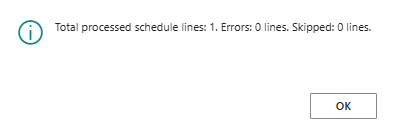
After the posting process is completed, the system displays a summary message showing the result of the operation.
If any posting errors occur, additional details can be reviewed in the **IFRS 16 Posted Accruals Status Review** page. Common issues include closed posting periods or incomplete setup.
After the errors have been resolved, the posting process can be run again. Continue until all required schedule lines have been posted successfully and no remaining errors are displayed in the Accruals Posting Log.
### Accounting Result
When accrual posting is completed successfully:
* **Accruals Posted** is automatically marked as **Yes** on the posted schedule line.
* Monthly lease accruals are posted.
* Interest expense is recognized.
* Short-term lease liabilities are reduced by the scheduled principal amount.
* A portion of long-term lease liabilities is reclassified to short-term liabilities.
### Reversing Accruals
If an accrual posting needs to be cancelled, select the posted schedule line and choose **Reverse Accruals**.
The system creates reversing entries that negate the original accrual posting while preserving the audit trail.
## Depreciation Calculation
Depreciation of the Right-of-Use (ROU) Asset is calculated using the standard **Calculate Depreciation** functionality in Microsoft Dynamics 365 Business Central. The IFRS 16 solution does not change the depreciation process itself but extends it by supporting dimension allocation during depreciation posting.
### Running Depreciation Calculation
To calculate depreciation, use the standard **Calculate Depreciation** batch job available in Business Central. The process creates depreciation entries for all eligible fixed assets, including ROU Assets created through the IFRS 16 module.
### Dimension Allocation
If the asset has been configured with an IFRS Dimension Allocation Template, depreciation expenses can be allocated across multiple dimensions according to the allocation percentages defined for the asset.
The dimension allocation method used during depreciation posting depends on the **IFRS Dimension Allocation Method** configured on the asset card:
* **IFRS Allocation** - uses the IFRS Dimension Allocation Template assigned to the asset.
* **FA Posting Group** - uses the standard allocation setup defined in the FA Posting Group.
### Depreciation Posting Result
After depreciation has been calculated and posted:
* Depreciation expenses are recognized in the General Ledger.
* The carrying amount of the ROU Asset is reduced.
* Dimension allocations are applied according to the configuration of the asset.
## Posting Invoice Received from Vendor
Vendor invoices related to lease payments should be posted using the standard purchase invoice functionality in Business Central. However, several additional IFRS 16 requirements must be followed to ensure that lease-related postings can be traced correctly.
### Creating the Purchase Invoice
Create and post the vendor invoice using the standard purchase invoice process.
When entering invoice lines:
* Use the same General Ledger account to which lease accruals are posted.
* Complete the **Contract No.** field.
* Complete the **Schedule No.** field.
These references allow invoice transactions to be linked to the appropriate lease contract and schedule.