> For the complete documentation index, see [llms.txt](https://learn.tryonederful.com/llms.txt). Markdown versions of documentation pages are available by appending `.md` to page URLs; this page is available as [Markdown](https://learn.tryonederful.com/ifrs-16/creating-and-activating-a-lease-schedule.md).
# Creating and Activating a Lease Schedule
Before using the solution, complete the configuration steps described in the IFRS 16 - Setup Guide.
## Entering Contract Data
Create a new lease contract by opening a Contract Card and entering the required information.
Fields that must be completed by the user
* **Contract Description** **-** Lease contract description entered by the user.
* **External Contract No.** **-** Reference number from the original lease agreement.
* **Vendor No. -** Vendor associated with the lease contract.
* **Responsible Person Code -** User responsible for managing the contract.
Fields that are populated automatically by the system
* **Contract No. -** Generated from the configured number series.
* **Contract Status -** Initially set to *Pre-Contract*. Changes to *Active* after activation.
* **Contract Date -** Defaults to the current work date and can be adjusted if required.
* **Signing Date -** Defaults to the current work date and can be adjusted if required.
## Schedule Calculation and Recalculation
After contract information is completed, schedule information needs to be filled in, and then
\
schedule can be calculated.
Schedule card can be created by pressing **Manage > New**:
Mandatory fields, which must be completed by user, are marked:
* **Schedule No.** - Automatically generated based on the contract number and schedule sequence. The first schedule is typically assigned sequence number **01**.
* **Version No.** - Indicates the schedule version. The initial schedule is created as **Version 1**. Each amendment creates a new version with an incremented version number.
* **Version Status** - Indicates the status of the schedule version:
* **New** - draft version awaiting confirmation.
* **Valid** - active version used for postings.
* **Old** - superseded version retained for historical reference.
* **Schedule Status** - Indicates the current lifecycle status of the schedule:
* **Pre-Contract** - schedule has not yet been confirmed.
* **Active** - schedule is confirmed and active.
* **Expired** - lease term has ended naturally.
* **Early Buy-Out** - lease ended through purchase of the asset.
* **Terminated** - lease ended before the contractual end date.
* **Schedule Date Calculation** - Defines the posting date logic used for schedule lines. The recommended value is **Last Day of Month**, which posts monthly lease liability movements, accruals, and interest expenses on the last day of each period.
* **Payment Period** - Defines the payment frequency specified in the lease agreement. Available options include **Monthly**, **Quarterly**, **Half-Yearly**, and **Annual**.
* **Payment Month in Period** - Used for quarterly, half-yearly, and annual payment schedules to specify in which month of the payment cycle the payment is due. For more information, see *Monthly, Quarterly and Up-Front Payment Schedules*.
* **Lease Starting Date** - Start date of the lease agreement as defined in the signed contract.
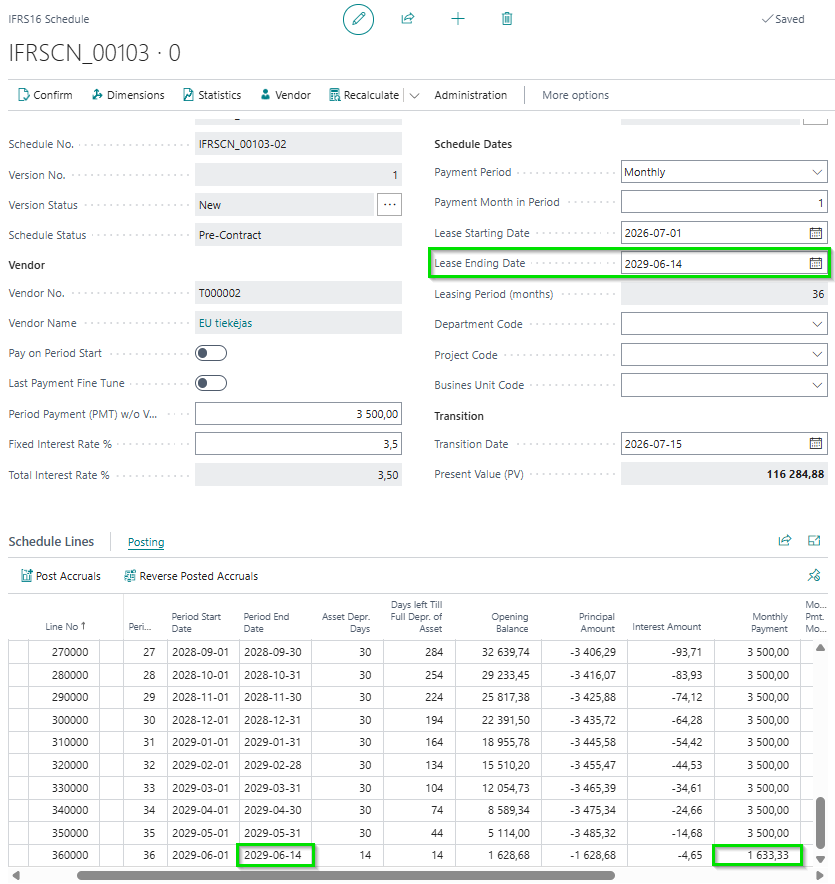
* **Lease Ending Date** - End date of the lease agreement as defined in the signed contract.
* **Schedule Starting Date** - Calculated automatically by the system and indicates the actual start date of the lease schedule.
* **Schedule Ending Date** - Calculated automatically by the system and indicates the actual end date of the lease schedule.
* **Transition Date** - Date when control of the leased asset is transferred to the lessee. This date is used as the starting point for lease calculations and may differ from the Lease Starting Date. The field must be entered manually before schedule confirmation.
* **First Payment Date** - Optional field used when the first lease payment falls in a different month than the Transition Date. If left blank, the system automatically uses the last day of the Transition Date month as the first payment date.
* **Activation Date** - Populated automatically when the schedule is confirmed and activated.
* **Asset No.** - Reference number of the related Right-of-Use (ROU) Asset.
* **Add Advance Payment** - Indicates that the lease includes an advance payment. For more information, see *Advance Payment*.
* **Leasing Period (Months)** - Calculated automatically based on the Lease Starting Date and Lease Ending Date.
* **Period Payment (PMT)** - Regular lease payment amount per period, excluding VAT. This value is entered manually and used for schedule calculations.
* **Set Zero Interest Rate** - Enable this option if the lease should be calculated without interest.
* **Fixed Interest Rate %** - Annual discount rate used to calculate the present value of future lease payments.
* **Total Interest Rate %** - Calculated automatically as the sum of the fixed and variable interest rates.
* **Effective Monthly Interest Rate %** - Monthly interest rate calculated automatically from the Total Interest Rate. This rate is used to calculate the monthly interest expense.
* **Present Value (PV)** - Represents the initial lease liability and the acquisition cost of the Right-of-Use (ROU) Asset. The value is calculated automatically by discounting future lease payments using the applicable interest rate.
Once all required fields have been completed, the lease schedule is calculated automatically. Any changes to lease parameters trigger an automatic recalculation of the schedule.
Calculated schedule lines are available in the **Lease Schedule Header Subpage:**
Most schedule line fields are calculated automatically and normally do not require manual adjustments. Changes are typically made only when the first or last payment needs to be adjusted due to specific lease terms.
The most important schedule line fields are:
* **Date** - Posting date used for lease liability movements, interest expense recognition, and accrual postings.
* **Outstanding Amount** - Remaining lease liability balance after each payment period. The opening balance is based on the calculated Present Value (PV) and is reduced over time as principal payments are applied.
* **Principal Amount** - Portion of the lease payment that reduces the lease liability balance.
* **Interest Amount** - Interest expense calculated using the outstanding lease liability balance and the Effective Monthly Interest Rate. This amount is recognized as interest expense during accrual posting.
* **Monthly Payment** - Lease payment amount for the period. The value is derived from the **Period Payment (PMT)** field on the schedule header and is used during accrual posting.
* **Liability Term Type** - Indicates whether the liability balance is classified as **Short-Term** or **Long-Term**.
Each schedule line represents a single lease period and shows how the lease payment is split between principal repayment and interest expense, as well as the remaining lease liability balance after posting.
## Adjustment of Monthly Payment for the First and Last Payment Periods
The first lease payment is calculated based on the **Transition Date**, which represents the date when control of the leased asset is transferred to the lessee. The Transition Date may differ from the Lease Starting Date and must be entered manually before the schedule can be confirmed.
If the Transition Date falls in the middle of the month, the system automatically recalculates the first payment amount based on the actual number of lease days within that period.
Similarly, if the lease ends before the end of a month, the system automatically adjusts the final payment amount based on the actual number of lease days in the last period.
### Manual Payment Adjustments
If required, individual schedule lines can be adjusted manually by modifying the **Date** and **Monthly Payment** fields on the relevant schedule line.
When a payment amount is modified manually:
* **Monthly Pmt. Modified** is automatically set to **Yes**.
* A notification is displayed indicating that the schedule contains manually adjusted payment lines.
{% hint style="warning" %}
Manual payment adjustments should be made only after the **Lease Starting Date**, **Lease Ending Date**, and **Transition Date** have been finalized.
If any of these dates are changed after a payment has been adjusted manually, the schedule is recalculated and shifted accordingly. However, the modified payment amount remains attached to its original schedule line rather than being moved to the new first or last lease period.
For this reason, manually adjusted payment lines should always be reviewed after any changes to lease dates.
{% endhint %}
### Removing Manual Adjustments
To restore system-calculated payment amounts:
* Clear the **Monthly Pmt. Modified** flag on the affected schedule line.
* Or select **Recreate Lines**.
### Monthly, Quarterly and Up-Front Payment Schedules
The payment frequency of a lease schedule is defined in the **Payment Period** field. Available options include **Monthly**, **Quarterly**, **Half-Yearly**, and **Annual**.
For quarterly, half-yearly, and annual schedules, the **Payment Month in Period** field must also be completed. This field determines in which month of the payment cycle the lease payment is due.
For example, if **Payment Period = Quarterly** and **Payment Month in Period = 3**, lease payments are scheduled in the third month of each quarter.
### Up-Front Payment Schedules
Some lease agreements require payments to be made at the beginning of the lease period rather than at the end. These are referred to as **Up-Front Payment Schedules**.
To create an up-front payment schedule, enable the **Up-Front Payments** option on the schedule card.
When this option is enabled:
* The lease schedule is calculated using up-front payment logic.
* The Present Value (PV) calculation is adjusted accordingly.
* The first payment line does not contain an interest amount because the payment is made at the beginning of the lease term.
### Asset Card Creation
After the lease schedule has been calculated, a Right-of-Use (ROU) Asset card must be created. The asset card is used to manage the accounting value and depreciation of the leased asset. To create the asset card, select the **Asset No.** field on the schedule card and create a new asset.
#### Main Fields on the Asset Card
* **Depreciation Book Code -** Automatically populated from the **IFRS FA Depreciation Book** defined in IFRS Setup. The depreciation book determines how depreciation entries are calculated and posted.
* **FA Posting Group -** Automatically populated from the default **IFRS FA Posting Group** defined in IFRS Setup. If no default posting group has been configured, the field must be completed manually before the asset can be used for posting.
* **Depreciation Starting Date -** Defines the date from which depreciation will begin. The value is calculated based on the lease dates and the depreciation date setup method selected for the schedule.
* **Depreciation Ending Date -** Defines the date on which depreciation will stop. The value is calculated automatically based on the lease period and the selected depreciation date setup method.
* **Depreciation Date Setup Methods -** The depreciation start and end dates are determined using the following setup parameters:
* Depr. Starting Date Set Method
* Depr. Ending Date Set Method
By default, these settings are inherited from **IFRS Setup**. However, if different values are specified on the schedule card before the asset is created, the schedule-specific settings will be used instead.
#### Dimensions
When the asset card is created, the system automatically assigns the default IFRS dimensions configured for the lease schedule. These dimensions are later used for financial reporting and analysis.
### FA Dimension Allocation Templates
Business Central supports dimension allocation for fixed asset transactions through allocation templates. By default, allocation templates are assigned at the **FA Posting Group** level.
The IFRS 16 solution extends this functionality by allowing allocation templates to be assigned directly to individual Right-of-Use (ROU) Assets. This makes it possible for assets using the same FA Posting Group to have different allocation rules.
Dimension allocation is applied during the following processes:
* ROU Asset depreciation calculation
* Interest expense posting
#### Configuring Dimension Allocation
After the asset card has been created, select the allocation method that will be used for the asset.
#### Option 1 - IFRS Allocation
Select this option when allocation should be managed through IFRS-specific allocation templates.
Complete the following fields:
* IFRS Dimension Allocation Method = IFRS Allocation
* IFRS Dimension Allocation Template = select the appropriate template from the list of IFRS Dimension Allocation Templates.
With this option, depreciation and interest expenses will be allocated according to the percentages defined in the selected allocation template.
#### Option 2 - FA Posting Group
Select this option when dimension allocation should follow the standard Business Central functionality configured in the FA Posting Group.
Complete the following field:
* IFRS Dimension Allocation Method = FA Posting Group
In this scenario, allocation templates configured on the FA Posting Group will be used during depreciation and interest expense posting.
Use **IFRS Allocation** when different assets require different allocation templates, even if they belong to the same FA Posting Group. Use **FA Posting Group** when standard Business Central allocation rules are sufficient.
### Schedule Activation
Once the lease schedule has been reviewed and all required information has been entered, the schedule can be confirmed and activated using the **Confirm Schedule** action.
Before activating the schedule, the system validates the lease data and checks whether all mandatory fields and setup requirements have been completed. If any required information is missing, an error message is displayed and the schedule cannot be activated until the issue is resolved.
After all validation errors have been corrected, select **Confirm Schedule** again. The system will prompt the user to enter an **Activation Date**. By default, the **Transition Date** is suggested as the Activation Date.
#### Schedule Activation Results
After successful activation:
* **Contract Status** changes to **Active**.
* **Schedule Status** changes to **Active**.
* **Version Status** changes to **Valid**.
* Schedule input parameters become read-only and the schedule can no longer be edited or recalculated directly. Any future changes must be performed through a new schedule version.
During the activation process, the system posts the calculated **Present Value (PV)** as:
* the initial **Lease Liability**, and
* the acquisition cost of the related **Right-of-Use (ROU) Asset**.
### Advance Payment
The **Advance Payment** functionality is used when a lease agreement requires an upfront payment before the regular lease payment schedule begins. The advance payment amount is included in the lease calculation and reduces future lease payments over the lease term.
To create a lease schedule with an advance payment:
1. Enable the **Add Advance Payment** option on the schedule card.
2. Enter the advance amount in the **Advance Payment Amount** field.
3. Recalculate the schedule.
After the schedule is recalculated, an additional schedule line is created with **Line Type = Advance**. This line represents the advance payment and is included in the overall lease calculation.
#### Advance Payment Posting
The advance payment is posted automatically when the schedule is confirmed using the **Confirm Schedule** action. No separate posting process is required.
After schedule confirmation:
* The advance payment transaction is posted automatically.
* The advance payment line is marked as **Accruals Posted = Yes**.
* Posting entries are created together with the initial lease liability and Right-of-Use (ROU) Asset entries.
* The advance payment uses the same posting date as the initial schedule activation posting.
#### Posting Result
After confirmation, the advance payment is reflected in the corresponding General Ledger and lease accounting entries together with the lease liability and ROU Asset postings.
### Schedule Review Dates Management
Some lease contracts require periodic review and reassessment of their terms. For example, lease payments may be subject to annual increases, index adjustments, or other contractual changes. To help users track these obligations, the solution includes Schedule Review Date functionality.
Schedule Review Dates help ensure that active lease schedules are reviewed at the appropriate time and updated when required. This feature reduces the risk of continuing lease accounting based on outdated lease terms.
#### Schedule Review Date Fields
Review dates can be maintained directly on the lease schedule.
Available Fields:
* **Next Schedule Review Date -** Specifies the next date on which the lease conditions should be reviewed.
* **Schedule Review Periodicity -** Defines how often the lease should be reviewed, such as annually or at another predefined interval.
These fields can be edited while the schedule version is in **New** status. Once the schedule has been activated, review dates are maintained through the **Active Schedule Management** page.
#### Schedule Review Dates Update
After schedule activation, review dates are managed through the **Active Schedule Management** page. This page provides a centralized view of review information for all active lease schedules.
Using this page, users can:
* Review upcoming Schedule Review Dates for all active schedules.
* Add review dates to schedules that do not yet have review information assigned.
* Update review dates after a lease review has been completed.
#### Review Date Status Filters
Several filters are available to help identify schedules requiring attention:
* **All Active Schedules -** Displays all active schedules regardless of review date status.
* **Already Expired -** Displays schedules where the Next Schedule Review Date has already passed.
* **Expired and To Be Expired -** Displays schedules with review dates that are already overdue or will become due within the defined warning period.
* **All with Non-Empty Next Schedule Review Date -** Displays all schedules that have a Next Schedule Review Date assigned.
#### Updating Review Dates
Review dates can be updated using one of the following actions:
* **Update Schedule Review Date (Single Entry)** - updates the review date for the selected schedule.
* **Update Schedule Review Date for All Filtered Overdue Entries** - updates review dates for all overdue schedules matching the selected filter.
After the update of Review Date:
#### Schedule Review Date Control During Accrual Posting
To help ensure lease schedules remain up to date, the system validates the **Next Schedule Review Date** during accrual posting.
If the Next Schedule Review Date is overdue, the system blocks accrual posting until the review date has been updated. This control helps prevent lease accounting transactions from being posted based on lease terms that may no longer be valid.